
Overview
All policyholders must submit a photo of their vehicle’s odometer after purchasing mechanical coverage.
This photo confirms the vehicle’s mileage at the start of coverage.
⚠️ Important:
You must submit your odometer photo within 30 days of purchasing your policy.
If the photo is not submitted within this timeframe, your coverage will be void.
The process only takes a few minutes and can be completed from your policy dashboard.
Who This Applies To
This requirement applies to all policyholders with an active mechanical coverage policy.
Before You Start
You will need:
- Access to the vehicle
- A smartphone or camera
- Access to your policy dashboard
Your photo must clearly show the current mileage displayed on the vehicle’s odometer.
Step-by-Step: Submitting Your Odometer Photo
Step 1: Turn On the Vehicle
Start the vehicle or turn the ignition to the accessory position so the dashboard display turns on.
The odometer reading must be visible on the dashboard.
Tips for a clear photo:
- Make sure the mileage numbers are easy to read
- Avoid glare or reflections
- Take the photo straight-on
Step 2: Take a Photo of the Odometer
Use your phone or camera to take a photo of the dashboard showing the odometer.
The image should include:
- The full mileage reading
- The dashboard display
Make sure the photo is not blurry and the numbers are easy to read.
Step 3: Log In to Your Policy Dashboard
Sign in to your policy dashboard and open the page for your vehicle’s coverage.
Look for the section labeled Odometer Photo Upload.
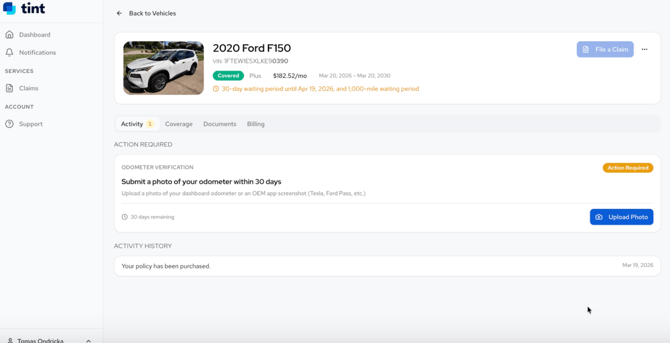
Step 4: Upload Your Photo
Once you locate the upload section:
- Click Upload Photo
- Select the odometer image from your device
- Confirm the upload
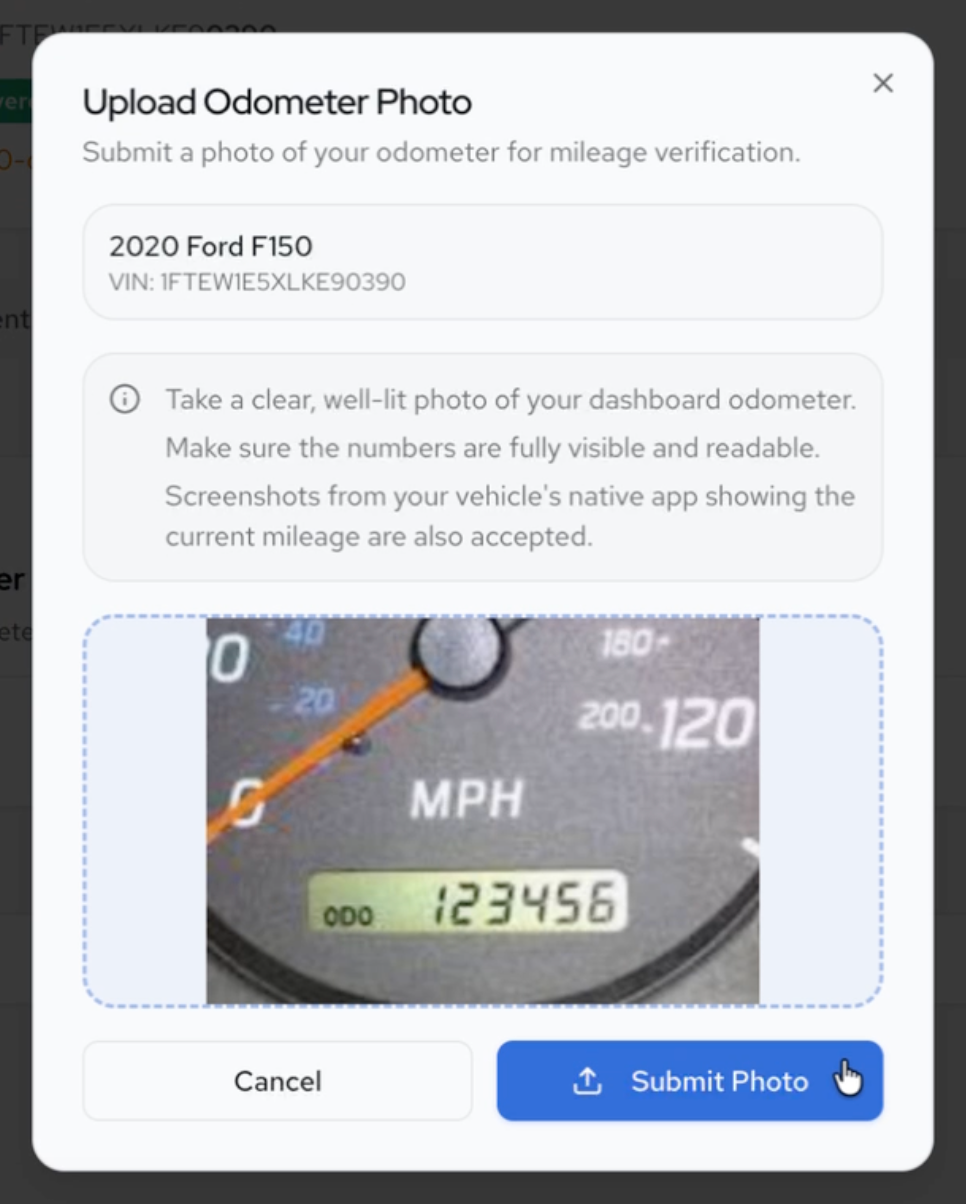
After uploading, the dashboard should show that your photo was successfully submitted.
Important Requirements
Odometer Photo Deadline
You must submit your odometer photo within 30 days of purchasing your policy.
If the photo is not submitted within 30 days, the policy’s coverage will be void.
Photo Quality
Your photo must clearly show the mileage. Photos that are:
- blurry
- cut off
- difficult to read
may need to be resubmitted.
Need Help?
If you need help, our support team is available through the following channels:
Email: support@tint.ai
Phone: (909) 505-2338
24/7 Support
When you contact support, you’ll first be connected with our AI Agent, which is available 24/7 to route your request.
- During business hours, the AI Agent can connect you with a licensed support agent
- If you contact us outside of business hours or while all agents are assisting other customers, a ticket will be created and a licensed support agent will follow up on the next business day
Licensed Support Hours
Monday–Friday, 10:00 AM – 6:00 PM EST