
The Tint portal allows you to download your current insurance documentation, including:
- A policy-level Certificate of Insurance (COI)
- Proof-of-insurance ID cards for all covered vehicles
- Vehicle-specific Certificates of Insurance (COIs) for all covered vehicles
Documents are generated on demand using your latest coverage details.
Before you start: This article is for Off-Trip Insurance policies underwritten by R.V.I. Your policy is underwritten by R.V.I. if any of these apply:
- It started on or after June 19, 2026.
- It renewed on or after June 19, 2026.
If none of these apply, your policy is underwritten by Mobilitas, so use this article instead. The insurer name printed on your ID card and certificate of insurance also tells you which one covers you.
Download your insurance documentation for ONE vehicle
Step 1: Log in to the Tint portal
Go to https://my.tint.ai/portal and log in to your account.
Step 2: Open your Off-Trip Insurance policy
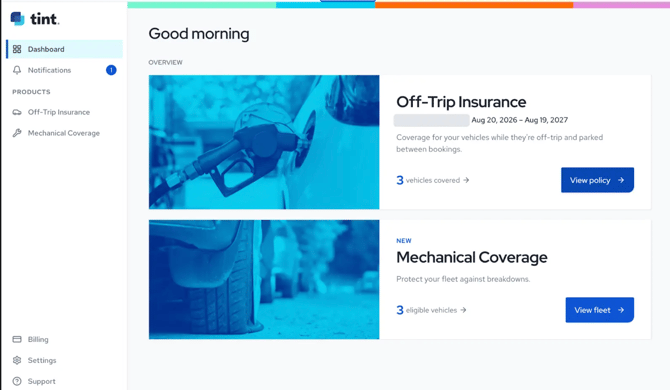
From the Dashboard, click View policy on the Off-Trip Insurance card. You can also select Off-Trip Insurance from the left navigation menu.
Step 3: Open the Fleet tab and select your vehicle
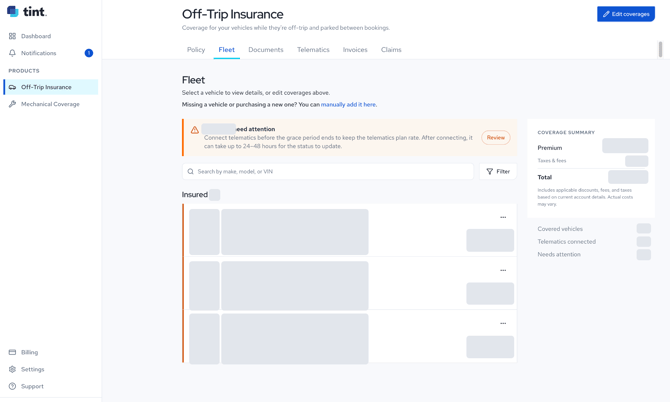
Select the Fleet tab, then click the vehicle you need documents for. The vehicle page shows the VIN and garaging address, so you can confirm you have the right car.
Step 4: Download from the Documents section
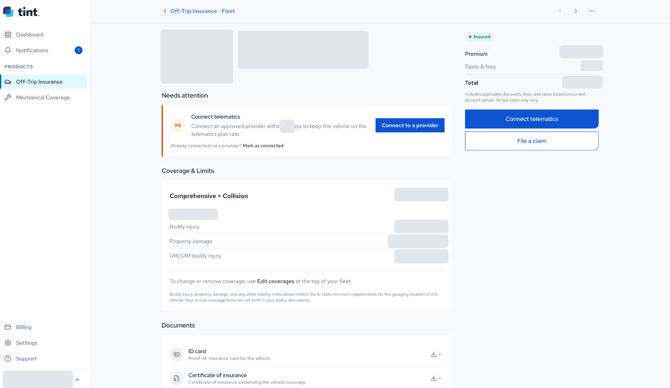
Scroll to Documents and click the download icon next to the document you need:
- ID card: the proof-of-insurance card for that vehicle.
- Certificate of insurance: the certificate evidencing that vehicle's coverage.
Download your insurance documentation for ALL vehicles
Step 1: Open the Documents tab
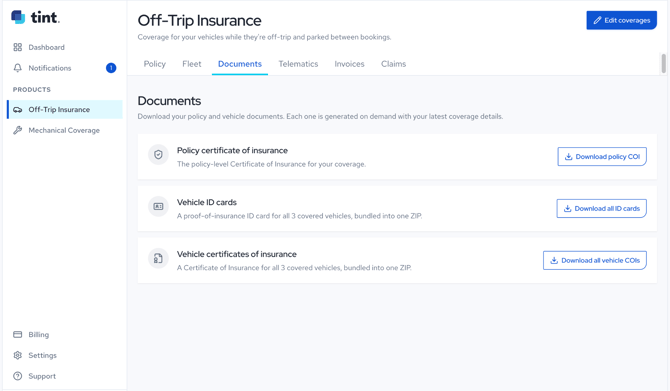
On the Off-Trip Insurance policy page, select Documents.
Step 2: Choose the document you need
On the Documents page, select one of the following:
- Download policy COI: Downloads one policy-level Certificate of Insurance.
- Download all ID cards: Downloads proof-of-insurance ID cards for all covered vehicles in one ZIP file.
- Download all vehicle COIs: Downloads a Certificate of Insurance for each covered vehicle in one ZIP file.
Step 3: Open the downloaded file
If you downloaded all ID cards or all vehicle COIs, open or extract the ZIP file to access the individual documents.
iPhone and iPad users: If the document does not download, allow pop-ups for my.tint.ai in your browser settings and try again.
Adding additional interest on your insurance documentation
Documents are generated on demand, so make any necessary updates before downloading them again.
- From your Off-Trip Insurance policy, select the Fleet tab.
- Find the applicable vehicle and click the three-dot menu on the right.
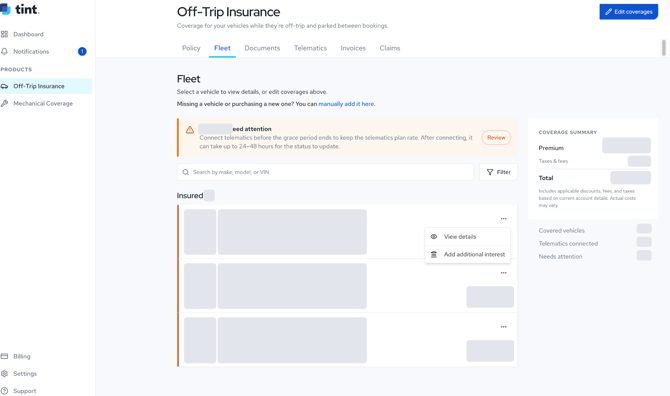
- Select Add additional interest.
- Select the appropriate interest type: Lienholder, Registered Owner, Co-Host, or Other.
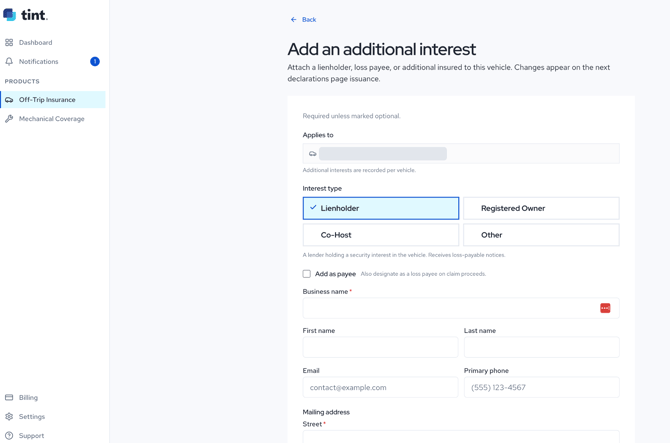
- If applicable, select Add as payee to designate the additional interest as a loss payee on claim proceeds.
- Complete the required contact and mailing-address fields, then submit the form.
Additional interests are recorded separately for each vehicle. Changes will appear on the next declarations-page issuance.
Contact Support
- Email: support@tint.ai
- Phone: (909) 505-2338
- Human support hours: Monday-Friday, 9:00 AM-5:00 PM CT
- AI Agent / Aimee: Available 24/7